
Case Study 02
What’s The Weather: Designing and Developing an API-Powered Weather App
Recently, I learned about the powerful things developers can create using APIs. For this project, I used a weather API from OpenWeatherMap and built a fully functional, responsive weather application.
Overview
Recently, I learned about the powerful things developers can create using APIs. For this project, I used a weather API from OpenWeatherMap and built a fully functional, responsive weather application. The app allows users to retrieve accurate, real time weather data anywhere in the United States using their zip code. I designed and coded the interface to be fully responsive, making sure it works well across mobile, tablet, and desktop devices. This project helped me gain hands on experience working with APIs and improve my skills in building responsive, user friendly web applications.
Connecting to the API
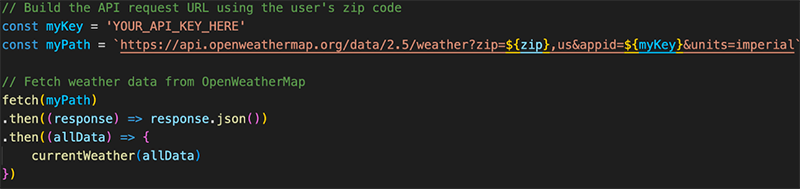
To retrieve real time weather data, I connected my app to the OpenWeatherMap API. I built a request URL that included the user's zip code and my API key. I then used the fetch function to request the weather data. Once the data was returned, I passed it into my currentWeather function, which allowed the app to display the weather information.
Displaying the Weather Data
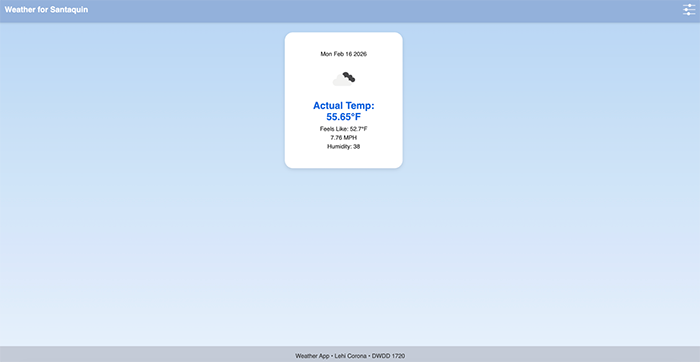
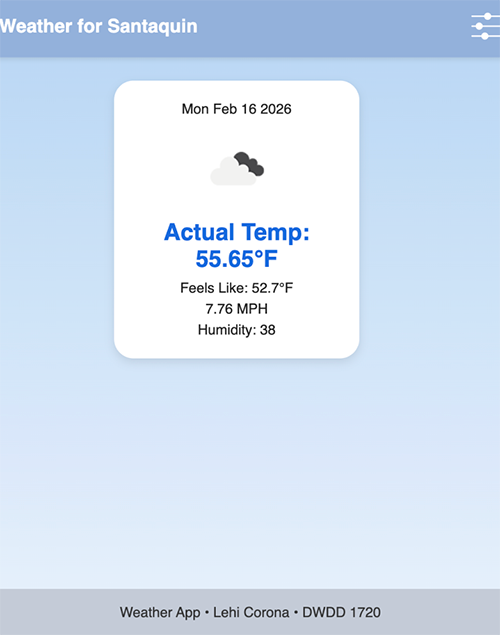
After receiving the data, I used JavaScript to dynamically create HTML elements and display the weather information. This included the current temperature, weather icon, humidity, wind speed, and the current date. This allowed the app to update automatically based on the user’s location.


The Power of localStorage
I used localStorage so the app could remember the user’s zip code even after the page was refreshed. This improved the user experience because they did not have to re enter their zip code every time they visited the app. When the app loads, it checks if a zip code already exists in localStorage. If it does, the app uses that zip code to automatically load the weather for that location. If no zip code is found, a default zip code is set so the app still displays weather information. This made the app feel more personalized and allowed it to load useful data immediately without requiring input from the user.
UI Feature
I added a settings button that allows users to enter a new zip code. When clicked, a modal appears where the user can enter their location. This made the app more interactive and allowed users to quickly check the weather for different areas without reloading or leaving the main screen.
Responsive Design
While working on the CSS for this weather app, I wanted to make sure it was fully responsive. I used media queries with breakpoints at 35rem for tablet and 60rem for desktop. This allowed the weather card and UI elements to scale appropriately across different screen sizes. My goal was to make sure the app looked good and functioned properly on mobile, tablet, and desktop. This helped improve the overall user experience and strengthened my responsive design skills.
Summary & Reflection
This project gave me valuable hands on experience working with APIs and building a fully functional web application using real time data. I learned how to fetch and display weather data dynamically, use localStorage to save user preferences, and create interactive features that improve the user experience.
One challenge I faced was understanding how to properly structure the data and display it on the page using JavaScript, but this helped me better understand how JavaScript, HTML, and APIs work together. I also strengthened my responsive design skills by making sure the app works well across mobile, tablet, and desktop devices. Overall, this project helped me grow as a developer and gave me confidence in my ability to build responsive and interactive web applications.